Introduction
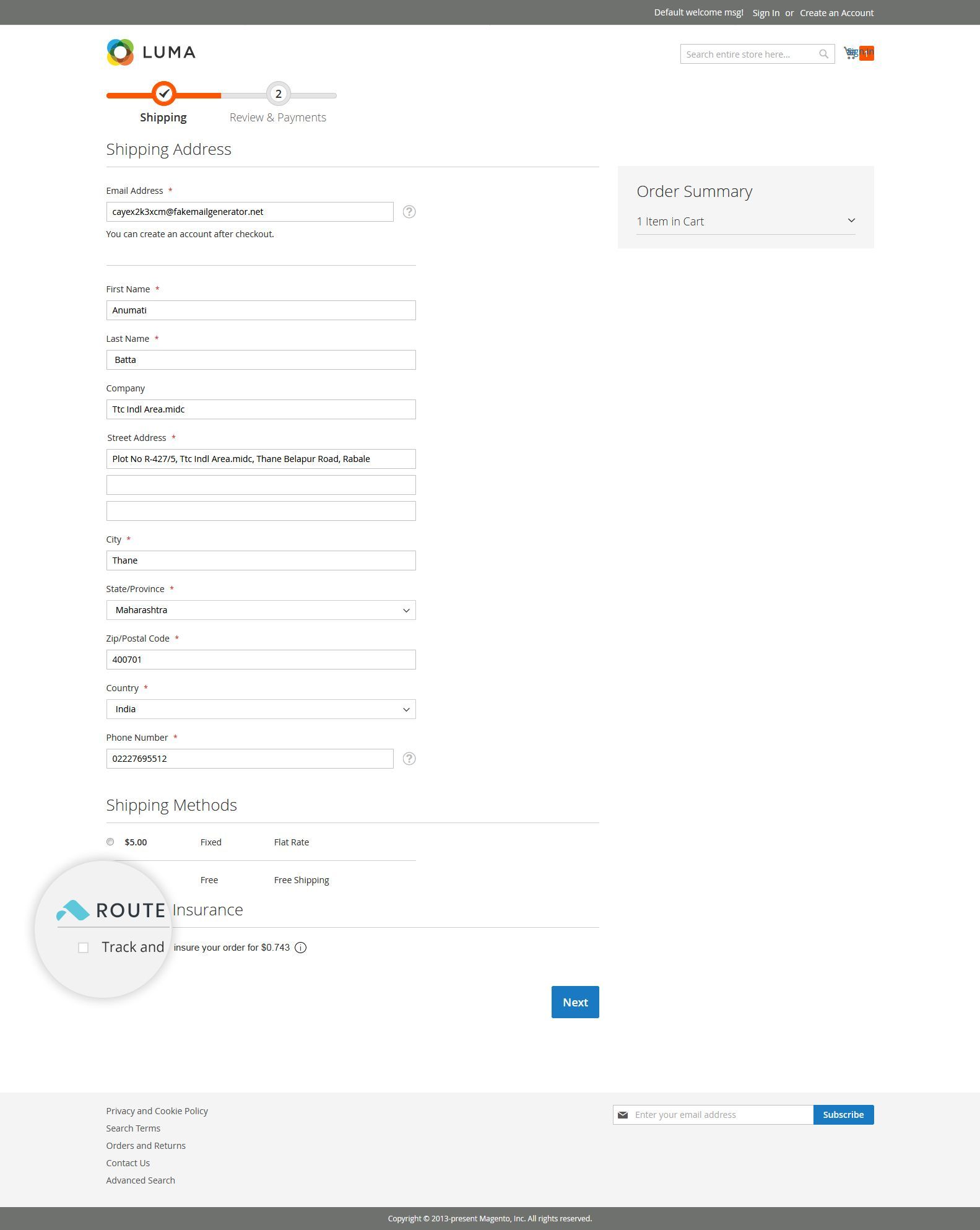
Route has developed a Magento Extension that adds secure shipping insurance to your orders. The extension has been tested on Magento 1.7, 1.8, and 1.9.
If you are having issues with our extension please reach out to our customer support.
Click here to get help.
The Route Shipping Insurance option simply sits on your checkout page, adding a layer of 3rd party trust to your site while improving your customer's shopping experience.
Route instantly protects your store, and your customers while covering losses, keeping more revenue in your pocket and your customers happy.
Guide for Route Extension installation
Magento Connect
-
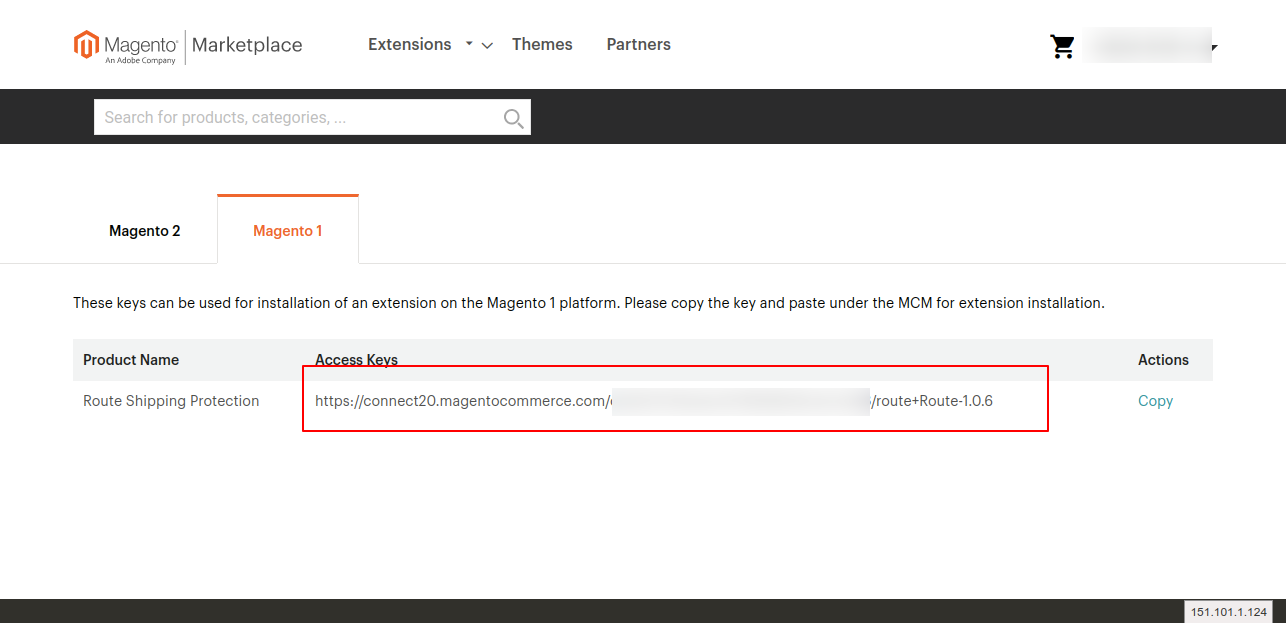
After purchase our free extension from Magento Marketplace, copy the access key referring to our module.
-
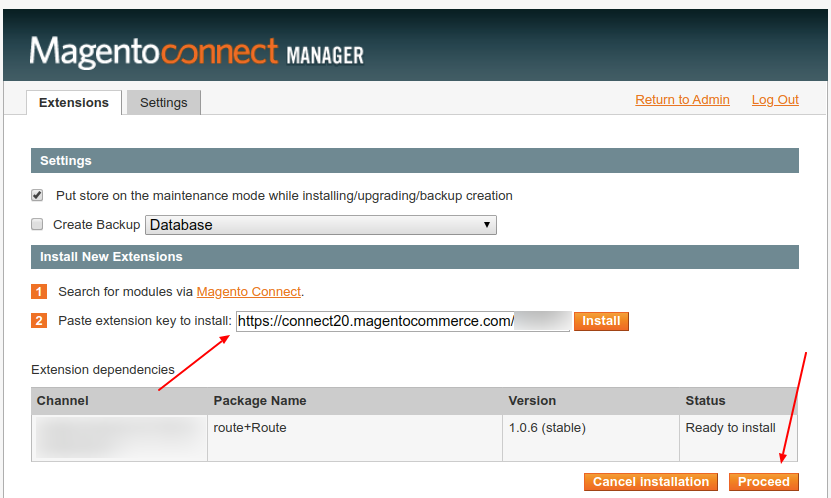
Paste it into your Magento Connect Manager and click to proceed.
-
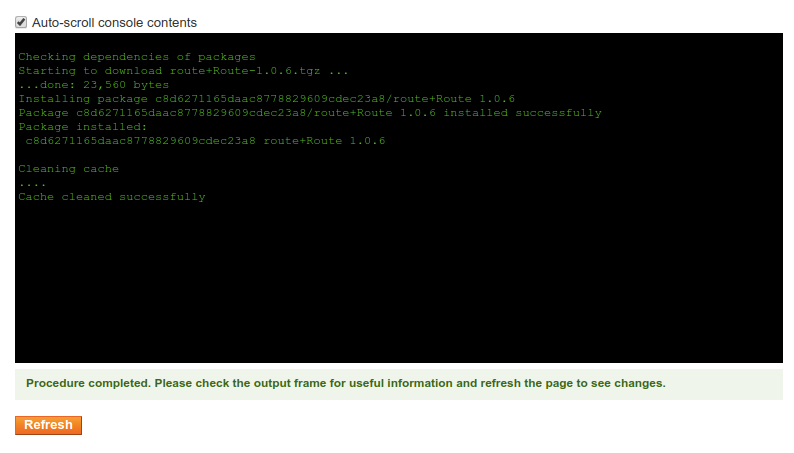
After a few seconds you should see the following screen.
If no errors messages were displayed, you have installed Route successfully!
Troubleshooting
-
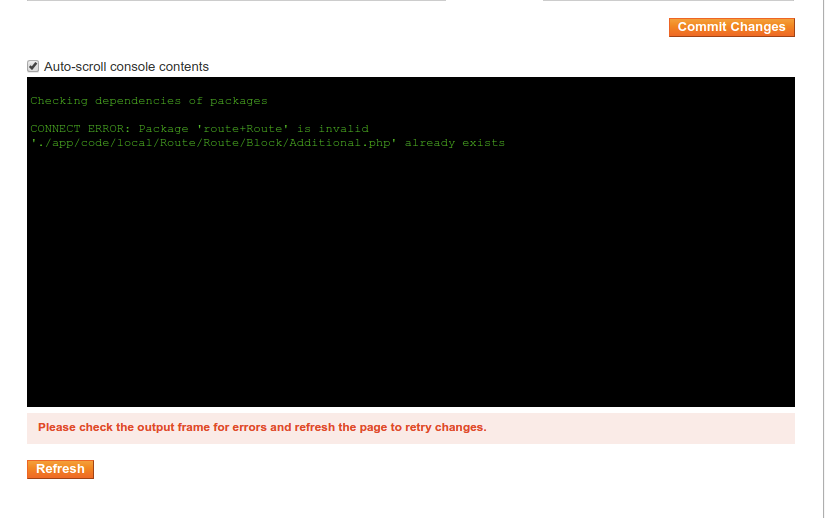
If you face the following error message, you should remove any previous version installed manually of our module.
Make sure you have the right permissions before proceeding.
How to Setup your Extension
-
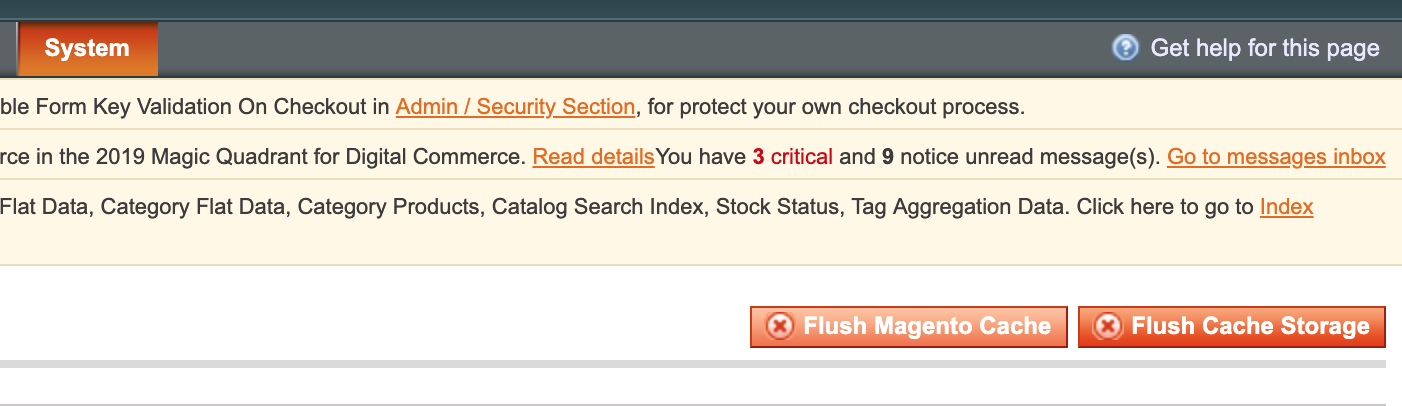
After uploading the plugin, go to the Magento Admin side and navigate to System -> Cache Management. Click on Flush Magento Cache.
-
After you clear the cache, sign out and sign in back to the admin.
-
To enable the extension, navigate to System -> Configuration -> Advanced -> Advanced.
-
Open the Disable Modules Output section and then check if the Route_Route module is enabled.
Add Merchant Tokens
If you do not have merchant tokens, please sign up
here.
You should have received three tokens from our team. A public token, a production secret token, and a test secret token.
The test secret token must be used if you're planning to place test orders only.
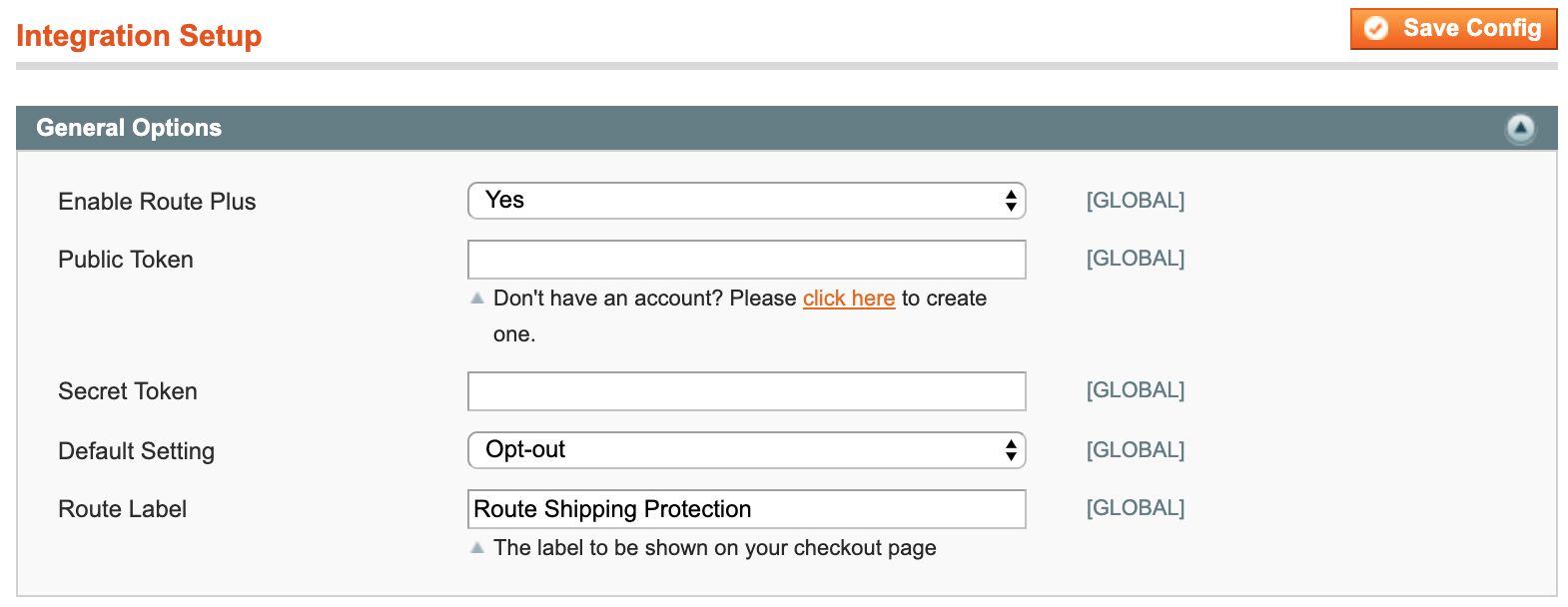
Route Plus
Route Plus enables the insurance checkbox to be displayed on your checkout page. You have the option to disable the insurance option and only send us the order and tracking information.
To disable the Route Plus, change the select field to No.
Public and Secret Tokens
The public token is used to calculate the insurance amount on your checkout page.
The secret token is used to send the order and shipping information to Route's API.
The test secret token must be used if you're planning to place test orders only.
Apply Default Insurance
To apply default Route insurance for all products navigate to
System -> Configuration -> Route -> Integration Setup, Select 'Opt-out' from default setting dropdown for preselecting route insurance checkbox during checkout otherwise select 'Opt-in' for not preselecting route insurance checkbox.
Route Label
You can change the text displayed on at your checkout page. By default, the text is going to be Route Shipping Protection.
Enable tax over Route fee
You can set Route fee taxable. Set "Is Route Fee taxable" as "Yes" and select the Tax Class of it.
By default it's disabled.
Order Confirmation
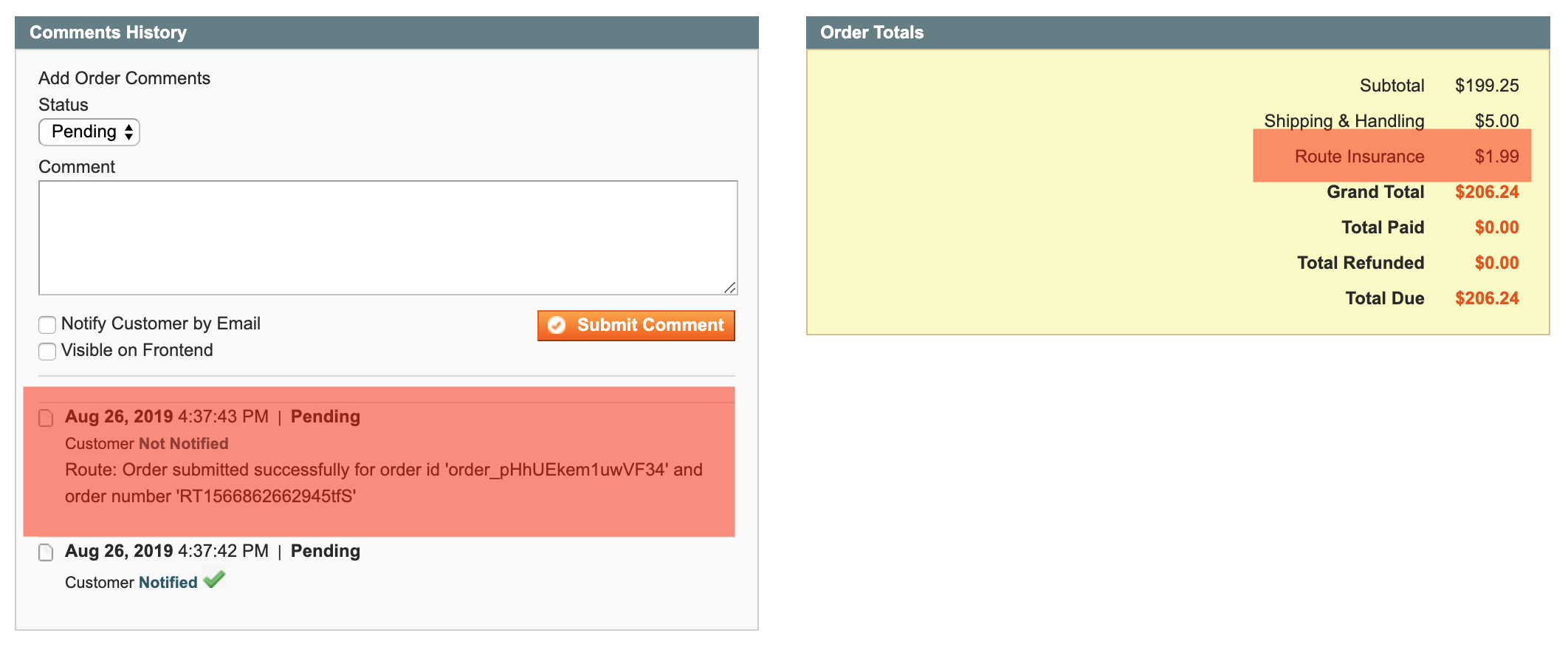
You can check if an order was placed using Route Insurance by navigating to Sales -> Orders and then selecting a specific order.
If an order was placed adding Route, you will see the fee added to the order summary.
You can also see the Route API calls in the Comments History section.
Widget Block / Shortcode
Route provides a widget block/shortcode if your store uses a custom checkout system, or if you need to place the Route checkbox in another page such as a slide cart.
CMS / HTML
When editing the page in the CMS, you can add the Route Widget by adding the following block code:
{{widget type="route/widget"}}
This code will render the Route checkbox wherever you add it.
PHP
You can also render the checkbox in any PHP/PHTML file. You can add the following code to your file:
<?php echo $this->getLayout()->createBlock('route/additional')->setTemplate('route/route.phtml')->toHtml(); ?>
Custom Line Item Integration
If you use a custom checkout system, or if Route is not showing up on your checkout page, Route provides three different solutions to fix this issue:
JSON response
You can make a request to get the JSON object containing the line item information.
Endpoint: /route/index/routeLine?format=json
Response:
{
  route: {
    label: "Route Insurance",
    amount: 0.98,
    currency: "USD",
    currency_symbol: "$"
  }
}
You can parse this JSON object and then add Route to your checkout page.
HTML output
The response will return a HTML snippet that can be appended to your checkout page. Since it returns a generic HTML code, you probably need to add some CSS code to customize its style.
Endpoint: /route/index/routeLine?format=html
Response:
<div class="route">
	<span class="label">Route Shipping Protection</span>
	<span class="amount">$1.23</span>
</div>
PHP
The PHP function will return an array containing the label and the amount to be displayed, similar to what the JSON object returns. You can call this function and then append it to your line items.
Code: <?php Mage::helper('route')->getRouteLine(); ?>
Output:
[
	'label' => 'Route Shipping Protection',
	'amount' => 1.23
	'currency' => 'USD'
	'currency_symbol' => '$'
]
Removing Legacy Version
Due to incompatibility issues, you must completely remove the old version of Route.
In order to do this, you should remove the following files:
- app/code/local/Route/
- app/design/adminhtml/default/default/layout/route.xml
- app/design/adminhtml/default/default/template/route/
- app/design/frontend/base/default/layout/route.xml
- app/design/frontend/base/default/template/route/
- skin/frontend/base/default/route/
- app/etc/modules/Route_Route.xml
- app/code/local/Routeapp/Additionalcharges/*
- app/design/adminhtml/base/default/layout/additionalcharges.xml
- app/design/frontend/base/default/layout/additionalcharges.xml
- app/design/frontend/base/default/template/additionalcharges/additional.phtml
- app/etc/modules/Routeapp_AdditionalCharges.xml
Please make sure you have cleared the cache after removing the files.